AI-assisted job costing for field-services contractors
Know what every job really made.
Bring your books, crew hours and equipment data together to see profit by job. An AI assistant guides your setup and flags details worth a second look. Exact dollars. Clear decisions.
Labor hours not uploadedShown as missing, not as $0.00.
How it works
An AI assistant by your side. From setup to your first job costs.
Ask in plain English. Get help reviewing accounts and matching people and jobs. AI analysis gives your setup a second look, highlighting details to review. You approve each change.
app.fieldcost.app/setupSample company
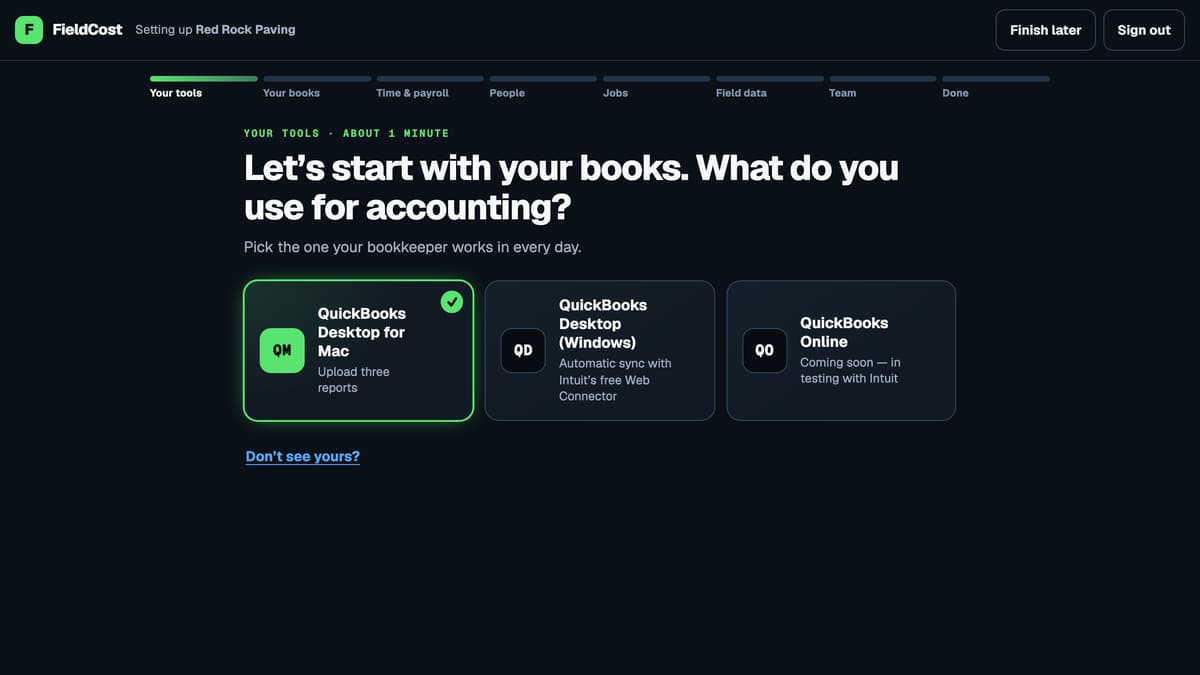
Step 1 · Your tools. Tap the card for the accounting tool your bookkeeper uses every day. Time clock, field forms and equipment come next, one question each.
app.fieldcost.app/setupSample company
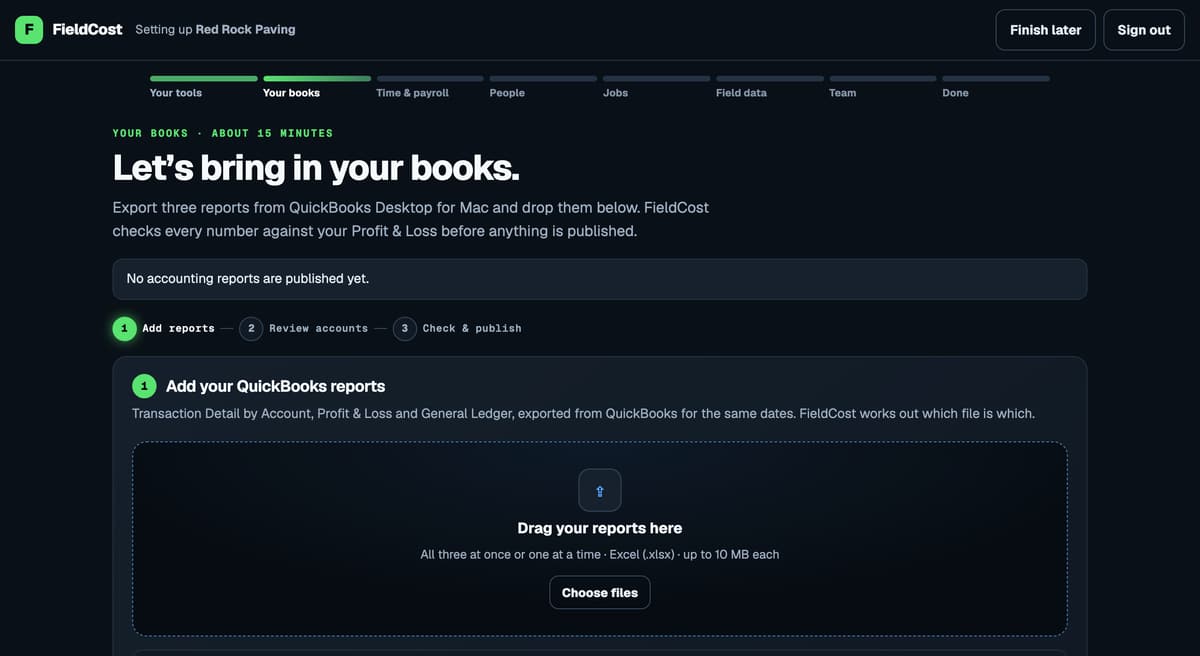
Step 2 · Your books. Drop in your reports, or connect once. FieldCost checks every number against your Profit & Loss before anything is published.
app.fieldcost.app/jobs-profitSample company
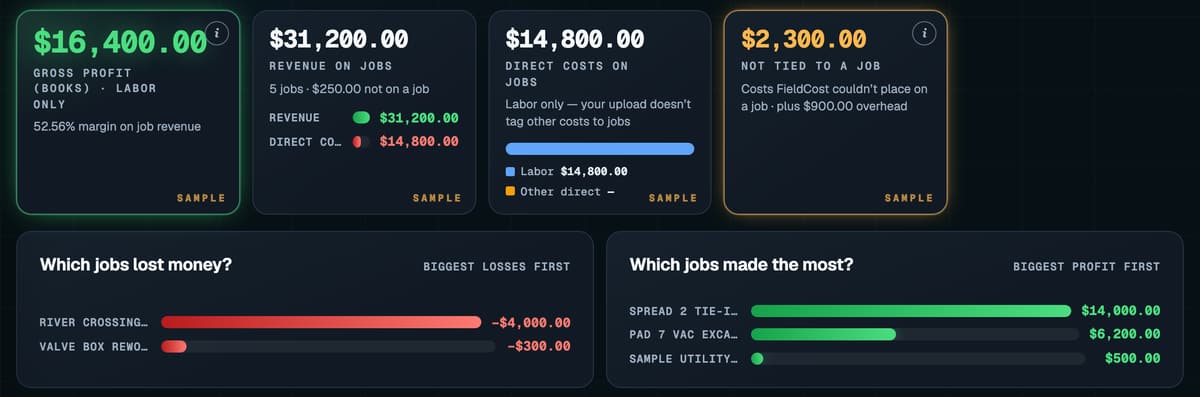
Step 3 · Profit by job. An owner confirms and publishes. Then everyone with access sees what each job brought in, what it cost and what it made.
Screens from FieldCost with a made-up sample company. Labor and field data join as you answer the remaining questions.
What you get
The numbers that decide whether a job was worth it.
One place for the money, the crews, the forms and the equipment behind every job.
Financials
Company profit at a glance.
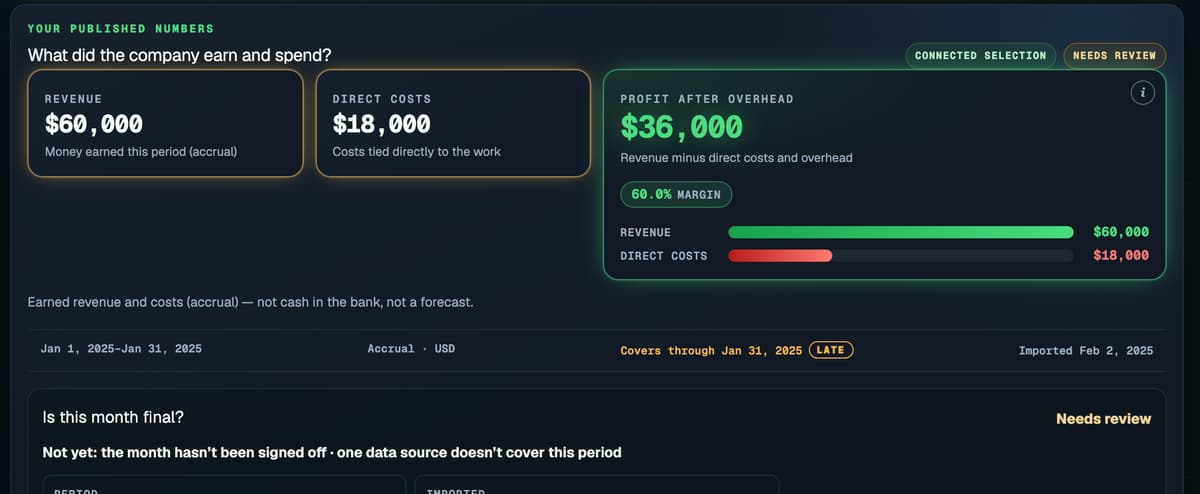
Revenue, costs and profit from your own books, to the cent.
Checked against your QuickBooks Profit & Loss totals
Earned revenue and costs (accrual), not a forecast
Shows when a month is final and when it still needs review
FinancialsSample company
Sample
Jobs & profit
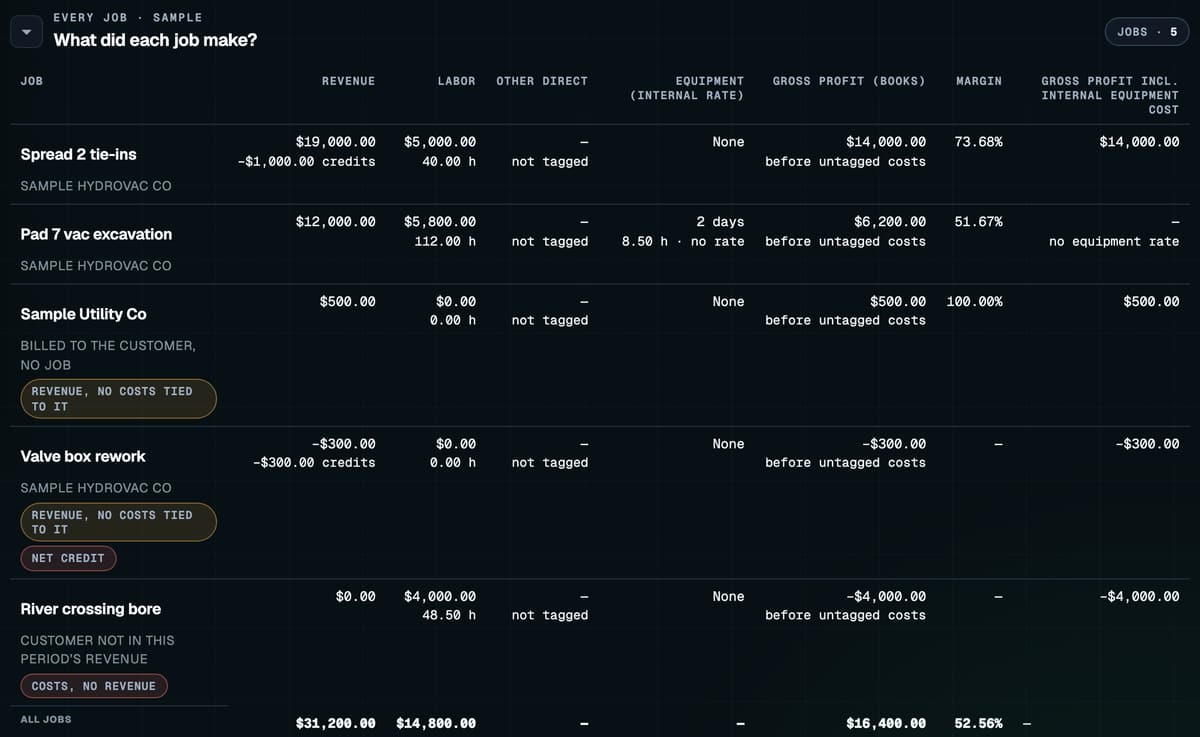
What every job brought in, cost and made.
Income is tied to the QuickBooks customer and job on each invoice.
Revenue, labor and gross profit for every job
Costs with no job stay on their own line, never spread
Vendor and payee names are never treated as jobs
Jobs & profitSample company
Labor cost by job · Unbilled work
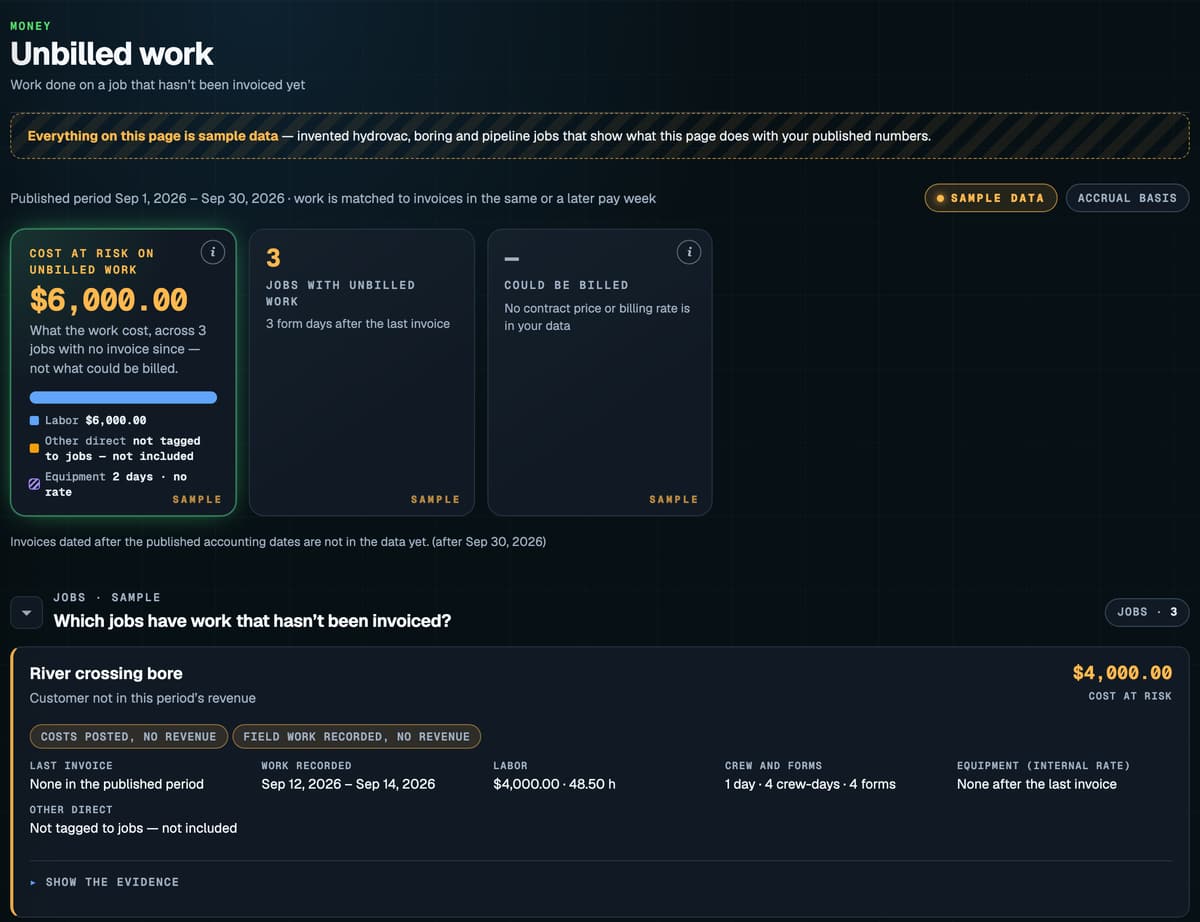
Where crew pay went, and what isn’t invoiced yet.
Each person’s actual pay for the week is placed on the jobs they worked, using time clock hours and signed job forms.
Anything that can’t be placed stays on its own line
Jobs with work after their last invoice, and what that work cost
Cost at risk is what the work cost, never a guess at what could be billed
Unbilled workSample company
Forms & safety
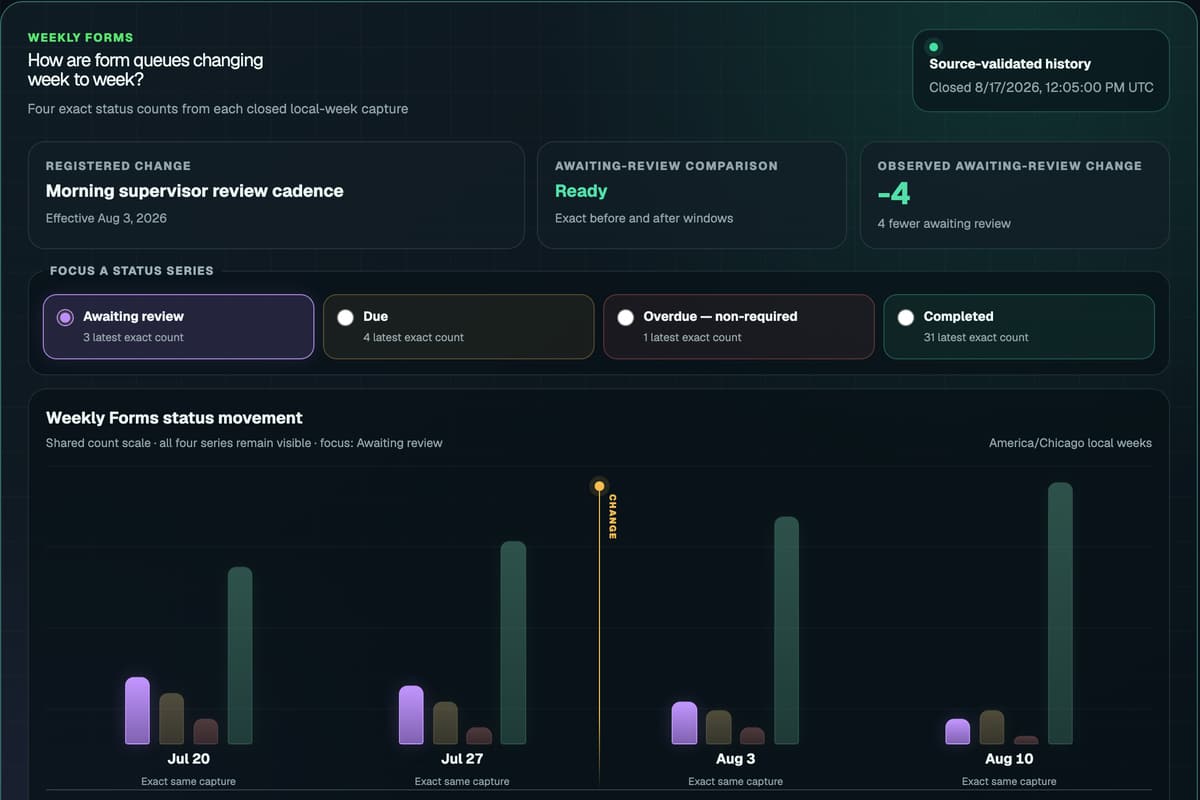
Field forms needing attention, without opening another app.
See which SiteDocs job forms need attention and who worked where.
Due, overdue and awaiting-review forms, week by week
Signed job forms show who was on which job
Forms & SafetySample company
Sample
Equipment
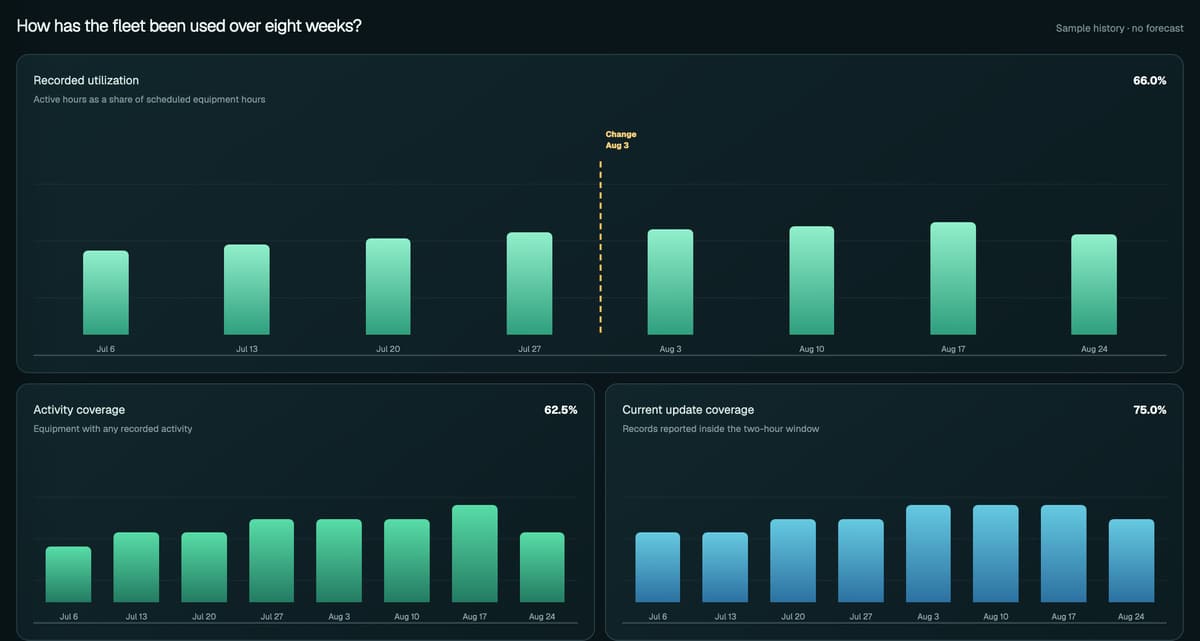
What ran, and when.
Usage for each asset from Tenna, kept in a history you can look back through.
Equipment days and hours on each job
In dollars on each job once you set internal equipment rates
EquipmentSample company
Also included A guided setup, roles for owners, finance, supervisors, field employees, viewers and auditors, and one-time invite codes for your team.
Integrations
Works with the systems you already run.
Every connection is read-only. Here is exactly how each one connects today.
QuickBooks OnlineComing soon — in testing with Intuit
QuickBooks Desktop for WindowsAutomatic sync
QuickBooks Desktop for MacReport upload
PayClockReport upload
SiteDocsDirect connection
TennaDirect connection
FieldCostRead-only
Profit by job
Labor cost by job
Forms needing attention
Equipment usage
Automatic sync
Direct connection
Report upload
Coming soon
Exactly what each connection does
QuickBooks Online Coming soon
Sign in to Intuit once and approve read-only access; FieldCost will read your accrual Profit & Loss and its transaction detail, and nothing is published until you review it. Coming soon — in testing with Intuit. Available once Intuit’s production review is done. Talk to us if you use QuickBooks Online.
QuickBooks Desktop for Windows
Syncs every 60 minutes through Intuit’s free QuickBooks Web Connector on the computer where QuickBooks runs, and checks each sync against QuickBooks’ own totals. After an owner reviews a sync, it publishes to Financials.
QuickBooks Desktop for Mac
Upload three standard reports (Transaction Detail by Account, Profit & Loss and General Ledger) exported as Excel workbooks. The Mac edition has no Web Connector.
PayClock
Upload the Employee Timecard or Employee Totals report for finished pay weeks. Saving hours only adds; changes to saved days wait for your decision.
SiteDocs
Connect with your SiteDocs API key. Signed job forms show who worked where, and which forms need attention.
Tenna
Connect with a read-only Tenna API token to bring equipment usage into FieldCost.
Run something else? Talk to us about what your company uses.
Built for
Contractors whose crews and equipment move from job to job.
Hydrovac excavation
Which digs paid once crew pay and truck days are on the job?
Horizontal boring
Did that bore make money, or did it run long on crew hours?
Pipeline
Which spreads and tie-ins carry their cost, and which have work not yet invoiced?
Utility contractors
Which customers and jobs bring in the money, and what labor went into each?
Field services
Which forms need attention and who worked where, next to the money.
1Labor is the biggest number. Crews split their week across several jobs. FieldCost places each person’s actual pay on the jobs they worked, using the forms they signed.
One crew member · one sample pay weekSample
Sample job A · 20.00 h
Sample job B · 12.00 h
Sample job C · 4.00 h
No signed form · 4.00 h, kept on its own line
Sample illustration: one crew member’s 40-hour sample week split across three sample jobs, with 4 hours that have no signed form kept on their own line.
2
The books already know the revenue. Invoices carry the customer and job. FieldCost lines them up against cost, without retyping anything.
InvoiceCustomer : JobRevenue on the job
3
The field tells you the rest. Safety forms and equipment usage add who was where and what ran, kept next to the money instead of in another app.
Signed formEquipment hoursSame job
Accuracy rules
Numbers you can take to the bank, or nothing at all.
FieldCost follows the same strict rules on every screen. Here is what that looks like.
When a pay week hasn’t arrivedSample
A blank spreadsheet cell
Labor · week of Sep 5$0.00
Looks like a cheap week. It isn’t.
FieldCost
Labor · week of Sep 5Missing
PayClock week of Sep 5 not uploaded
Exact money, checkedSample
$123,456.78=your QuickBooks P&L✓
To the cent. Every import is checked against your QuickBooks Profit & Loss before an owner publishes it.
Illustrations are always markedSample
Gross profit · Sample job A$4,200.00Sample
Exact money. Actual dollars and cents from your books, never estimates. Each pay period shows whether every paycheck dollar adds up to your QuickBooks accounts.
Missing means missing. When data hasn’t arrived, FieldCost says so. Never guessed, never quietly shown as zero.
Sample data is always labeled. Anything illustrative carries a Sample label, so it can never be mistaken for your company’s numbers.
Nothing guessed from names. You give each account its role. People are suggested as matches only on an exact name match, and nothing is used until you confirm it.
Owner approval. An owner confirms a verified import before it is published to Financials, and approves each new connection before it is used.
Your data stays yours. Never sold, never used for advertising. Each company’s data is kept separate. Cookies only to sign you in, with no analytics or tracking.
FAQ
Questions owners ask first.
What do I need to get started?
A Google or Microsoft account, or any email address. Create your company and you start a 14-day free trial. The job costing setup checklist then shows each step, starting with your accounting data.
We use QuickBooks Online. Can we connect it?
Coming soon — in testing with Intuit. The QuickBooks Online connection opens once Intuit’s production review is done. Talk to us and we’ll let you know.
Does FieldCost change anything in QuickBooks?
No. Every connection only reads. FieldCost never creates, changes or deletes anything in QuickBooks, SiteDocs or Tenna.
We use QuickBooks Desktop for Mac. Does that work?
Yes. QuickBooks Desktop for Mac has no Web Connector, so you upload three standard reports exported as Excel workbooks. The help pages list the exact settings.
What happens when some data is missing?
FieldCost shows it as missing and tells you what to bring in. It never fills the gap with a guess or a zero. Labor that can’t be placed on a job stays on its own line instead of being spread across jobs.
How much does it cost?
Pricing is shown when you sign up. It is one plan per company, not per user, so you can bring your whole team. Every company starts with a 14-day free trial.
Who on my team can see the financials?
You choose a role for each person you invite: owner, finance, supervisor, employee, viewer, auditor or user admin. A user admin manages people and access but cannot see financial data.
How does FieldCost use AI?
An AI assistant helps you work through setup, explains the choices and suggests matches for people and jobs. A second look can flag setup decisions that deserve review, such as loan fees classified as employee benefits. You review and confirm changes before they are saved.
Revenue, costs and profit are calculated from your records and checked against your books. The AI helps you make sense of setup; the financial calculations stay grounded in your data.
What about my data and privacy?
Your company’s data belongs to your company and is used only to provide FieldCost to you. It is never sold, never used for advertising and never used to train AI models. You can ask for a complete export at any time.
 FieldCost